
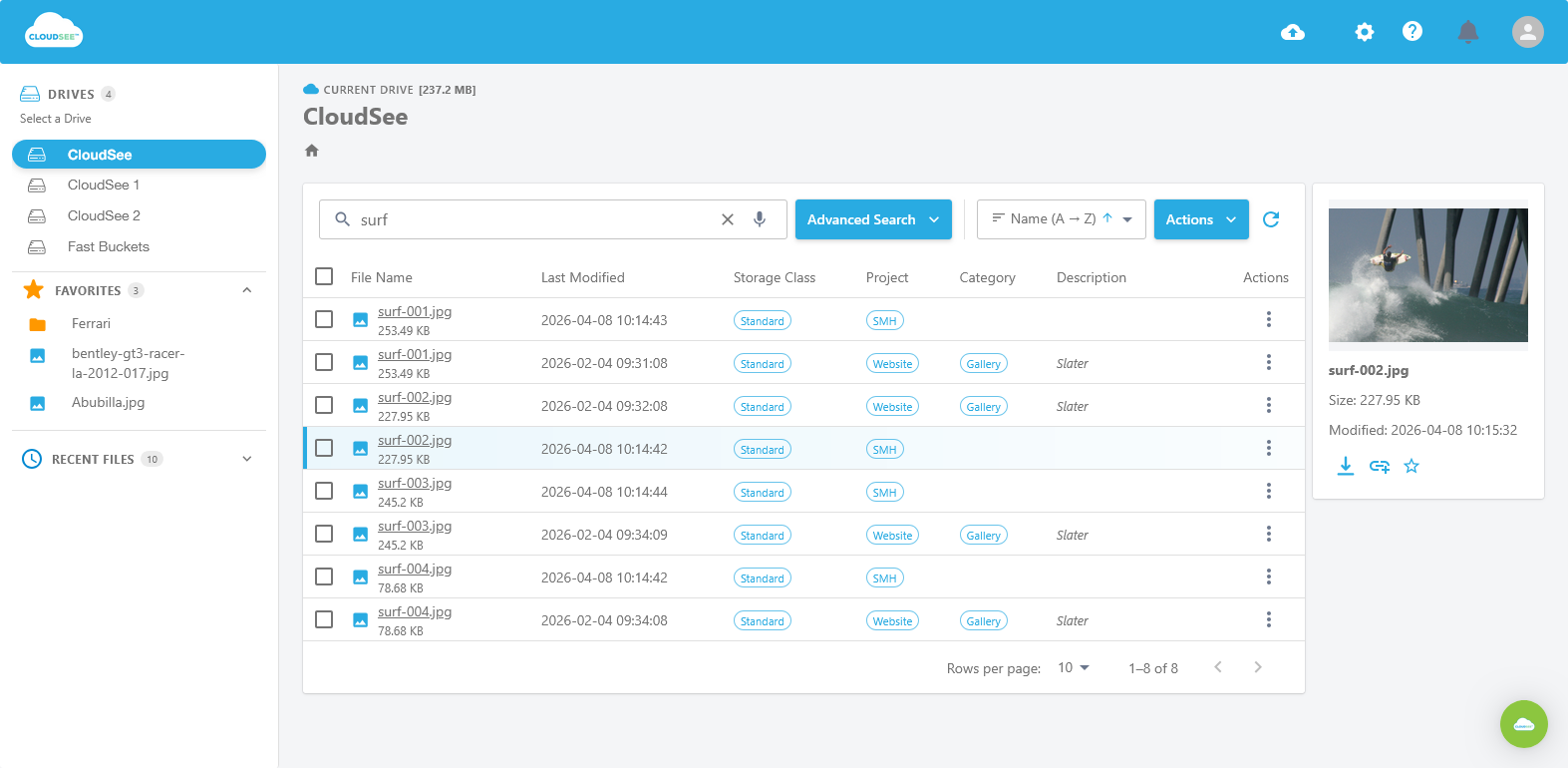
Every AWS admin knows this moment. You need one file in S3, and you know it exists. You remember the rough date, maybe the uploader, maybe the file type, but the bucket has tens of thousands of objects and your keyword search is turning up a wall of noise. CloudSee Drive’s broader S3 search and browser experience is built for exactly this kind of management work, and Advanced Search Filters takes that a step further.
The file was never lost. It just had no fast way to be found. CloudSee Drive already positions S3 as searchable by filename, metadata, custom tags, and file attributes; Advanced Search Filters makes that workflow more precise.
Why Basic Search Breaks Down
Keyword search works until your buckets get big. At S3 scale, a search for “invoice” can return hundreds of objects across months of uploads, versions, and unrelated folders. CloudSee Drive already helps teams search across millions of objects with indexing, but admins still need a better way to narrow a search without leaving the browser.
The AWS Console is great for infrastructure tasks, but it is not designed as a deep file-discovery tool. That gap matters when your job is not just to store data, but to locate it quickly and confidently. CloudSee Drive is aimed at that exact problem space: browser-based S3 management that is searchable and practical for administrators.
Search Like a Query
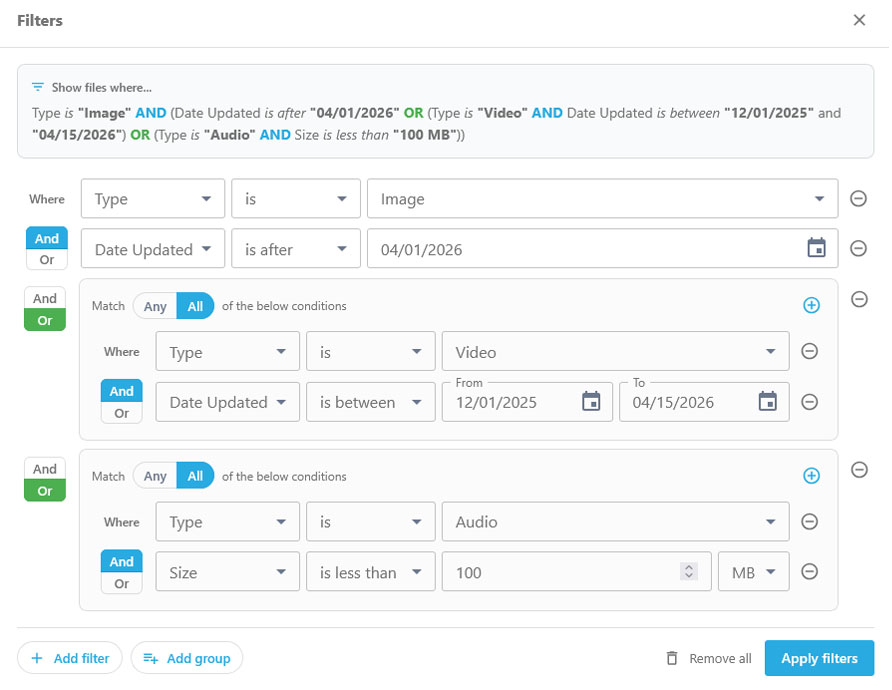
Advanced Search Filters lives in the Advanced Search menu, alongside Ask AI and Tag Explorer. Instead of one broad search box, you build a query row by row: choose a field, choose an operator, add a value. That makes the feature feel closer to constructing a query than guessing at keywords.
For example: file name contains “invoice,” file type is PDF, and date modified is after December 31, 2025. You can stack conditions with AND and OR logic, then group them into compound queries when you need more control. CloudSee Drive’s existing metadata and tag search makes this especially useful when combined with a structured tagging approach.
A plain-English preview shows you the query before you run it. That matters because search mistakes waste time, and AWS admins already spend enough of that chasing objects across buckets. Once you click Apply, you get the result set you actually wanted.
What You Can Filter On
Advanced Search Filters covers the fields AWS admins actually use. You can filter by file name, file type, file size, date created, date modified, uploader name, and tags. You can also use keyword logic such as AND, OR, and NOT to refine the result set. CloudSee Drive’s browser interface already supports search and metadata-driven management, so Filters extends an existing workflow instead of introducing a new one.
That tag support is important. CloudSee Drive’s Fast Buckets indexing and metadata-first search model already make tags useful at scale, and Filters lets you combine them with other criteria in one pass. If your buckets are already organized with a tagging playbook, the payoff is immediate.
What Does Not Change
Filters is additive. The search bar still works. Ask AI is still there. Tag Explorer is still there. The point is not to replace your current workflow, but to give you a sharper tool when basic search is not enough. CloudSee Drive’s broader product direction has always been about making S3 easier to search and manage without moving data out of AWS.
That matters in real admin work. CloudSee Drive says VisionAST cut S3 management time by 75% after switching to the platform, and faster retrieval is a big part of that kind of gain. When you can find the right object in seconds instead of minutes, everything downstream gets easier.
Advanced Search Filters is live now. See how it works.

Leave A Comment