
CloudSee Drive Advanced Search

Introducing CloudSee Filters

CloudSee Drive search does what it says — finds stuff by keywords. That’s helpful…until you’re staring at 700 objects when you need those 12 Q1 PDFs with “invoice” in the name (but it’s still better than Console…).

Filters fixes that.
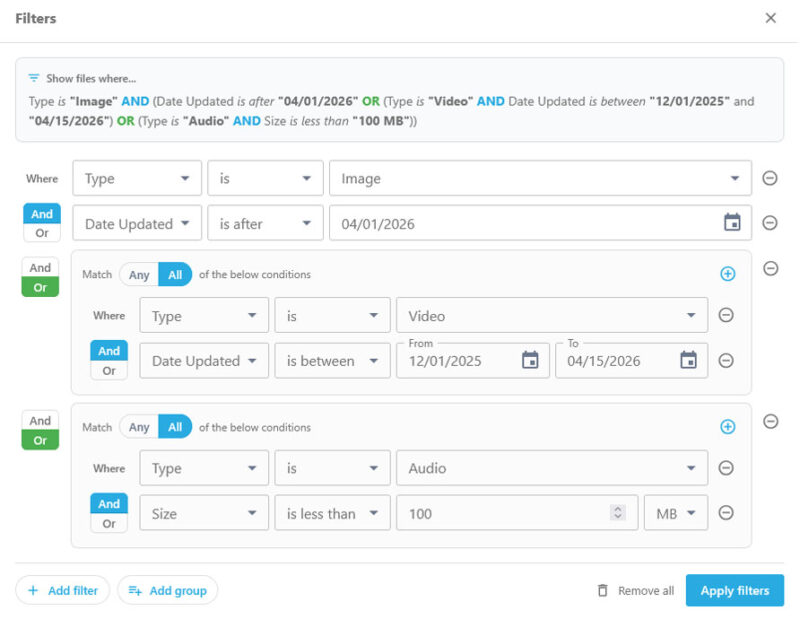
CloudSee Drive: Advanced Search Filters

You’ll find Filters in the Advanced Search menu, next to Ask AI and Tag Explorer. Open Filters and build your search row by row: pick a criteria, pick an operator, set a value.

Stack rows with AND/OR logic.

Group conditions for compound queries: “file name contains ‘invoice’ OR ‘receipt,’ AND type is PDF, AND updated after December 31, 2025.”

As you build, a plain-English preview shows you exactly what you’re about to run before you pull the trigger.

No guessing. No scrolling through noise. Just the files you really want.

Everything else (search bar, natural language, Tag Explorer) stays exactly where it is. Filters gives you a sharper tool when you need it.

What CloudSee Filters Can Search

Basic Metadata

  • File Name (Exact or Partial match).
  • File Type (PDF, JPG, TXT, CSV, etc.).
  • File Size (Range-based filter).
  • Date Created (Selectable range).
  • Date Modified (Selectable range).
  • Uploader Name (Who uploaded the file)

New Filters

  • Includes all words (AND logic for multiple keywords).
  • Includes any words (OR logic for keywords).
  • Does not include (NOT logic for excluding terms).
  • Tags (User-defined labels for categorization).
CloudSee Drive: Amazon S3 Tagging Playbook

Amazon S3 Tagging Playbook

Amazon S3

What CloudSee Users Say

To keep up with inbound customer queries about DMS feeds, we needed a file management and collaboration tool. We chose CloudSee Drive and I am happy with that decision. We can manage files from any device. I consider this the ultimate productivity tool for managing content on S3. We can organize and tag files easily, which increases staff productivity in the long term.

Pete Carusone, President & CEO
VisionAST

I’m able to select which user can see which bucket and with which permissions. That is a game changer!

David L., IT Director in Manufacturing

We use CloudSee Drive to access company file archives in S3. CloudSee works great to setup designated recovery users and manage which buckets they have access to. With S3, you can’t restore more than one file at once and you can’t search very well. We needed a solution to both those issues. CloudSee works great for what we need.

Derek B., Director of IT in Commercial Real Estate

Ready for a CloudSee Drive Demo?

If you want a personal deep-dive 20-minute live presentation, we invite you to schedule a demo.


    Make Amazon S3 Simple, Searchable, and Superfast.