

Your boss asks you to find a file in Amazon S3, so you open the AWS Console, navigate to your bucket, and…nothing. The browser tab spins, your laptop fan kicks in, and a simple browse operation turns into a multi-minute wait. If you’re managing large buckets (with hundreds of thousands, or millions, of objects), this is probably a regular experience. The truth is that the AWS Management Console was never designed to be a high-performance file browser for massive S3 buckets. Its architecture, combined with browser limitations, turns large-scale S3 navigation into a slow, unreliable experience that quietly taxes your team’s time and patience.
When the AWS Console Hits a Wall
The issue with large S3 buckets isn’t S3 itself. The Console was not created to display contents at scale.
Under the hood, the S3 Console relies on paginated listing calls (such as `ListObjectsV2`) to retrieve and render objects. Each page returns a limited number of keys (e.g., 1,000 at a time). The Console chains many of these calls together to fill the UI. When your bucket contains hundreds of thousands of objects in a flat structure or nested pseudo-folders, the Console must:
- Fire off a long sequence of paginated API calls.
- Process object metadata and build a large in-memory representation.
- Render thousands of rows into the DOM in your browser tab.
Browsers don’t love this. The combination of network latency, JavaScript processing, and DOM updates often leads to:
- Tabs that freeze or become unresponsive.
- High CPU and memory usage on your local machine.
- Partial or failed renders where you can’t reliably scroll or act on objects.
Multiply this pain across multiple accounts and regions, and it’s easy to see why administrators turn to the CLI for basic tasks.
There’s another catch.
Not everyone in your organization is comfortable with CLI or SDKs. Solutions architects and senior engineers may script their way around console limits, but analysts, support engineers, finance, and compliance staff often rely on the browser.
When the Console breaks down for them, they’re stuck:
- Filing tickets or pinging the “AWS person” on Slack.
- Waiting on others to fetch files, run searches, or provide evidence for audits.
- Abandoning certain checks altogether because they’re “too painful.”
The result is invisible bottlenecks that slow incident response, complicate investigations, and erode trust in your cloud tooling.
Why Addressing AWS Console Browsing Matters
Solving the “frozen” S3 console problem should make admins happier, and it creates real, measurable impact across your organization.
Operational Efficiency
When your team can’t reliably browse or search large buckets, everything takes longer…
- Verifying whether a file exists in a given prefix.
- Checking recent uploads during an incident.
- Collecting evidence for customer inquiries or audits.
Redirecting those workflows through scripts or “ask the AWS team” creates queueing and context-switching overhead. A smoother experience translates directly into fewer tickets, faster triage, and less time lost to waiting and re-running failed operations.
Cloud Cost Control
Inefficient browsing often leads to inefficient automation…
- Repeated, wide-scope listings when people “just refresh it” in frustration.
- Ad-hoc scripts that scan huge keyspaces instead of targeted prefixes.
- Lack of visibility into stale data that should be expired or archived.
At scale, this means more API calls, more data scanned in analytics, and more orphaned objects left in expensive storage classes simply because no one can easily see and manage them.
Security & Compliance
When the primary UI struggles, people start creating workarounds…
- Sharing privileged AWS accounts so “someone who knows the Console” can help.
- Downloading large volumes of data to local machines to inspect structure or metadata.
- Using copies of data in “temporary” buckets that live far longer than intended.
Improved, scalable S3 management reduces the need for risky shortcuts and makes it easier to enforce least privilege, maintain clean audit trails, and demonstrate control over sensitive data.
How to Manage Large S3 Buckets
A layered approach can make large S3 buckets manageable again.
1. Design better prefixes and key structures
The quickest win is to stop treating your bucket like a giant flat folder!
- Use date-based prefixes for time-series data:
`mybucket/logs/2025/12/01/`, `mybucket/events/2026/02/08/`.
- Use domain or ownership-based prefixes:
`mybucket/app-a/`, `mybucket/app-b/`, `mybucket/team-analytics/`.
- Keep object counts per “logical folder” manageable (for example, under tens of thousands rather than millions).
You can enforce these patterns by:
- Validating keys at upload time in your ingestion pipeline.
- Applying simple rules in Lambda functions or upstream applications.
- Documenting naming conventions and making them part of code review for services that write to S3.
A well-designed prefix strategy helps the Console, and it makes CLI, lifecycle policies, and analytics more efficient.
2. Use CLI and APIs with surgical precision.
For administrators comfortable with the CLI, targeted listing and filtering are more reliable than trying to scroll the Console…
- Use `–prefix` to limit the scope of listing to a subset of keys.
- Apply `–max-items` or other pagination flags to control how much data you retrieve at once.
- Wrap common commands in shell aliases or simple scripts so you’re not retyping complex invocations.
3. Lean on S3 Inventory for bulk insight.
For huge buckets (millions of objects), trying to “browse” everything is the wrong problem to solve. Consider S3 Inventory:
- Enable daily or weekly inventory reports for your largest buckets.
- Output to CSV or Parquet in a dedicated “inventory” bucket.
- Point Athena or other query engines at those manifests.
Now you can…
- Search for patterns in keys, sizes, or tags using SQL.
- Identify stale data, unusual growth, or mis-tagged content.
- Feed reports into cost optimization or compliance workflows.
Instead of pushing your browser and the Console to their limits, you analyze an indexed snapshot designed for large-scale querying.
4. Introduce purpose-built S3 management tooling.
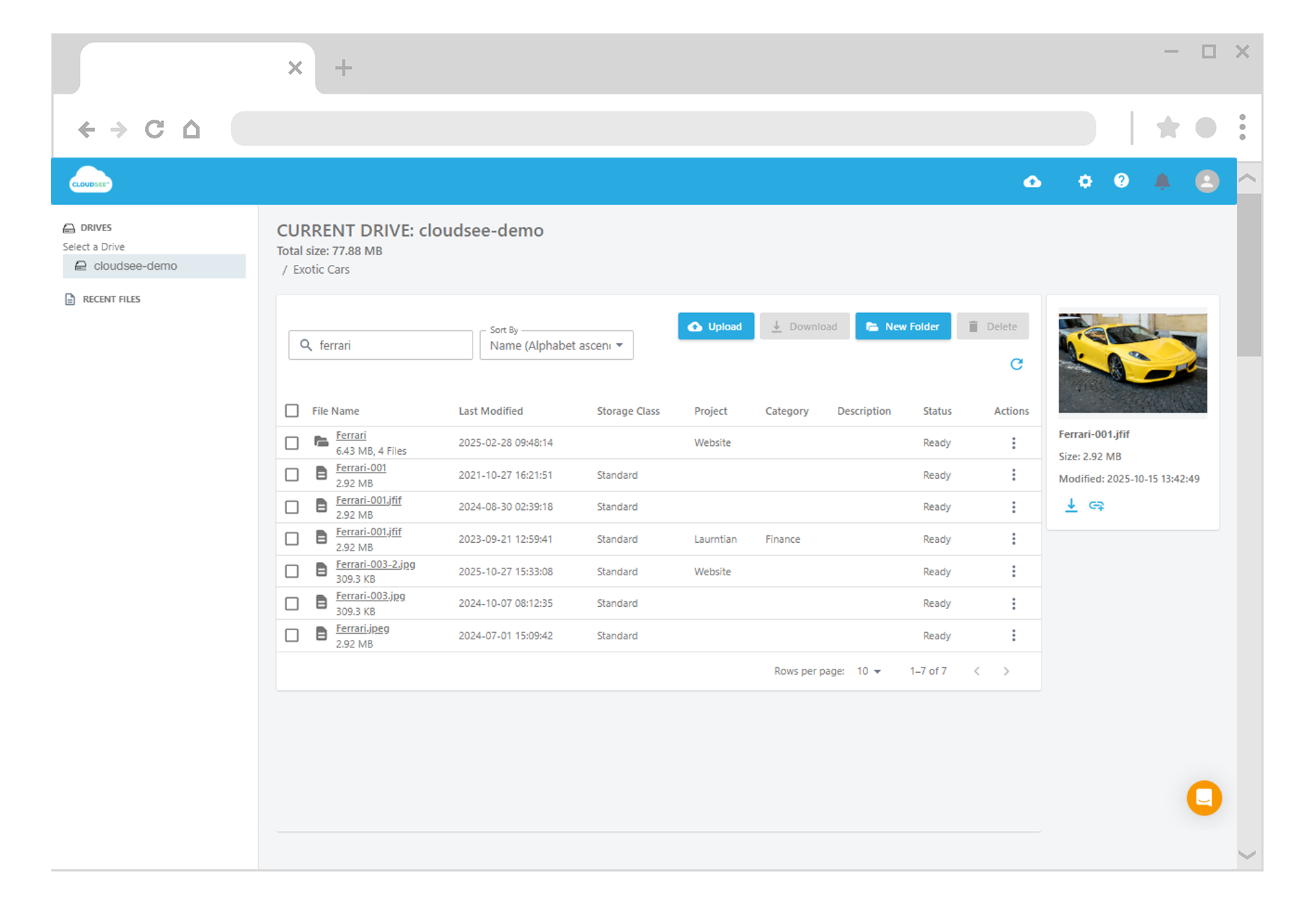
Even with better prefixes and CLI usage, many users still need a fast, visual way to work with S3. That’s wher tools like CloudSee Drive shine.
CloudSee Drive is built to handle large buckets and deep folder structures with an efficient, desktop-like experience.
- Load and paginate large directories more intelligently than the general-purpose Console UI.
- Provide fast search and filtering across buckets, prefixes, and tags.
- Support file operations (rename, move, delete, tag) without your browser locking up.
The result…
- AWS admins can continue using CLI and IaC for automation, while giving less technical users a friendly interface that works well at scale.
- Teams can collaborate on S3 management tasks without sharing root credentials or console workarounds.
- You can treat S3 like a high-performance file system from the user’s perspective You don’t sacrifice the underlying robustness of S3.
5. Standardize workflows for large buckets
Finally, codify what “good” looks like for your large S3 environments…
- Document when to use the Console vs CLI vs a dedicated S3 browser.
- Define thresholds (e.g., “buckets over X objects must use inventory for analysis”).
- Bake S3 management patterns into runbooks for incidents, audits, and cost reviews.
When everyone knows which tool and pattern to reach for, you avoid the recurring cycle of “open the console, wait, get frustrated, find a one-off workaround.
No More AWS Management Console Freeze
Stop staring at that spinning wheel like it owes you money. The AWS Console is great at many things, but playing file browser for your 1,000,000-object bucket isn’t on the list. You can keep refreshing and hoping, reorganize your entire prefix structure during your next sprint, or just accept that maybe, just maybe, a tool built for large-scale S3 management would save you from explaining to your boss why a “quick file check” took 30 minutes. Your laptop fan agrees.
TL;DR
- Large S3 buckets overload the AWS Console UI and your browser, causing freezes and timeouts during routine operations.
- Flat or poorly structured key layouts force the Console to make excessive paginated listing calls and render huge DOM trees.
- Better prefix and naming strategies dramatically reduce how much data any single view needs to load.
- CLI, APIs, and S3 Inventory provide more reliable ways to query and analyze very large buckets.
- Purpose-built tools like CloudSee Drive give teams a fast, visual interface for large S3 environments without relying on brittle console workarounds.
Leave A Comment